Quick start guide to creating your first artifact in Neurocad
Create Your First Artifact in Neurocad
This guide walks you through the core Neurocad workflow: add an engineering source, tell Neurocad what to create, review the result, and decide where it goes next. The current walkthrough uses Library Parts, including symbols and footprints. Additional artifact types can be added to this guide as their workflows become available.
Need a footprint-specific tutorial?
Use How to Create a PCB Footprint From a Datasheet for detailed package selection, targeted capture, prompt examples, and validation guidance.
Before you start
You will need:
- A Neurocad account. Click here to get started.
- An engineering source, such as a datasheet, drawing, design file, or image.
- Neurocad Link installed if you want to open generated artifacts directly in a desktop CAD application.
- A supported CAD application installed, open, and connected when you are ready to dispatch the artifact.
Quick start
- From the Create page, select Library Parts.
- In Part 01, select + Open file and add your source.
- Choose whether Neurocad should read the whole file or use a captured section.
- If you capture a section, tag it as a Symbol or Footprint and assign a part number if needed.
- Write a prompt describing the artifact you want Neurocad to generate.
- Select the arrow in the prompt field. Its hover label is Send.
- Review the generated artifact collection and choose your next action.
Step 1: Start from Create
After signing in, open the Create page and select Library Parts. This opens the one-off artifact workflow; you do not need to create a recipe first.
The guide begins with Library Parts because that workflow is available today. As Neurocad adds mapped workflows for other artifact types, this page can expand without changing the basic add, generate, review, and dispatch model.
Step 2: Add an engineering source
In Part 01, select + Open file and add the source Neurocad should interpret. Depending on the artifact, the source may be a datasheet, package drawing, schematic, BOM, design file, image, or other supported engineering document.
Use the source that most clearly contains the information required for the artifact. A focused package drawing may be better for one footprint, while a complete datasheet may be useful when generating related library information.
Step 3: Choose whole-file reading or targeted capture
Once the source is added, you can move directly to the prompt and let Neurocad scan the whole file, or capture one or more relevant sections.
- Use the whole file when the document is short, clearly structured, and unambiguous.
- Use targeted capture when the document is long, contains several variants, or requires a specific drawing or table to be treated as the source.
To capture a section, hover over the source, select the document icon to reveal the camera icon, and open the Capture window. Frame the relevant content, tag the selection, and select Capture. Repeat when the artifact requires more than one source region.
For the full footprint workflow, see How to Create a PCB Footprint From a Datasheet.
Step 4: Tag captures and assign part numbers
Tag each captured source as a Symbol or Footprint so Neurocad knows which library artifact to generate. You can also assign or change the part number manually.
How collections work: Every part generated in the same artifact run remains in the same collection, regardless of the assigned part numbers. To place parts in separate collections, generate them in separate artifact runs.
Part numbers identify and catalog the generated parts; they do not create separate collections within one run.
Step 5: Describe what you want to generate
Write a prompt that names the requested output, describes the source, and supplies any detail the source alone may not confirm. Useful details can include the manufacturer part number, package name, pin count, artifact type, or target convention.
Select the arrow in the prompt field to begin generation. When you hover over the arrow, the interface displays Send.
If the first result is incomplete, refine the prompt or provide a more focused capture, then generate again.
Step 6: Review the artifact collection
When generation finishes, Neurocad displays the resulting artifacts as a collection. Review the previews and confirm that each result matches the source and your intended artifact type before opening it in a design environment.
The results page provides three paths:
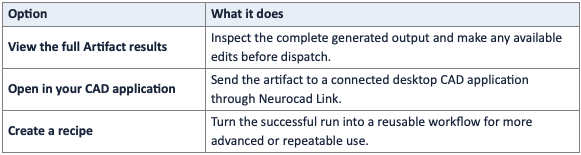
Step 7: Open the artifact in CAD
Choose Open in your CAD application when the artifact is ready. Neurocad Link connects the browser workflow with supported desktop CAD applications. Keep Link online and keep the destination CAD application open.
A successful transfer displays a Sent to desktop confirmation. Review the artifact once more in the target application and complete your normal library or design checks before production use.
If Open in your CAD application is unavailable
If the control is unavailable or the Play button is greyed out:
- Open Neurocad Link from the macOS menu bar or Windows system tray.
- Select Open dashboard.
- Confirm that Link shows Online. If it is offline, reconnect it.
- Check the status of the destination CAD application. Open the application if it is shown as disconnected.
- Return to the Artifact results page and try Open in your CAD application again.
For installation and connection help, see Download and Install Neurocad Link.
What to do next
Once you have completed a successful artifact run, continue with the guide that matches your next task:
Last updated April 10, 2026